Yaesu Bridge Setup
Use the Yaesu Bridge to connect Map-panion with supported Yaesu radio control workflows. The bridge runs locally, provides a web-based settings page, and can be configured to auto-start in the background when Windows logs in.
The Yaesu Bridge is designed for operators who want Map-panion to work alongside
compatible Yaesu radio control setups in a clean, local-first way.
What you need
The Yaesu Bridge files
A supported Yaesu radio
Correct COM port and radio profile
Optional: installer script and hidden launcher for auto-start
If your radio control workflow is already working on the computer, the Yaesu Bridge
can usually be configured to use the same communication path.
What the Yaesu Bridge does
The Yaesu Bridge is a small local service that connects
Map-panion with supported Yaesu radio control workflows.
It allows Map-panion to read radio-related information from a local bridge
service instead of trying to talk directly to the radio from inside the app.
This helps keep the setup modular, local, and easier to manage.
Install or place the Yaesu Bridge
Place the Yaesu Bridge files in a dedicated folder in:
C:\yaesu-bridge
If you use the installer script, it can also:
Create the install folder
Create a hidden launcher
Create a Scheduled Task
Start the bridge automatically at login
How to run it
That will:
Install Python if needed
Create Run-YaesuBridge.vbs
Create the Scheduled Task
Start the bridge right away
Configure the Yaesu Bridge
The Yaesu Bridge uses a local configuration file to store its settings.
Typical items to configure
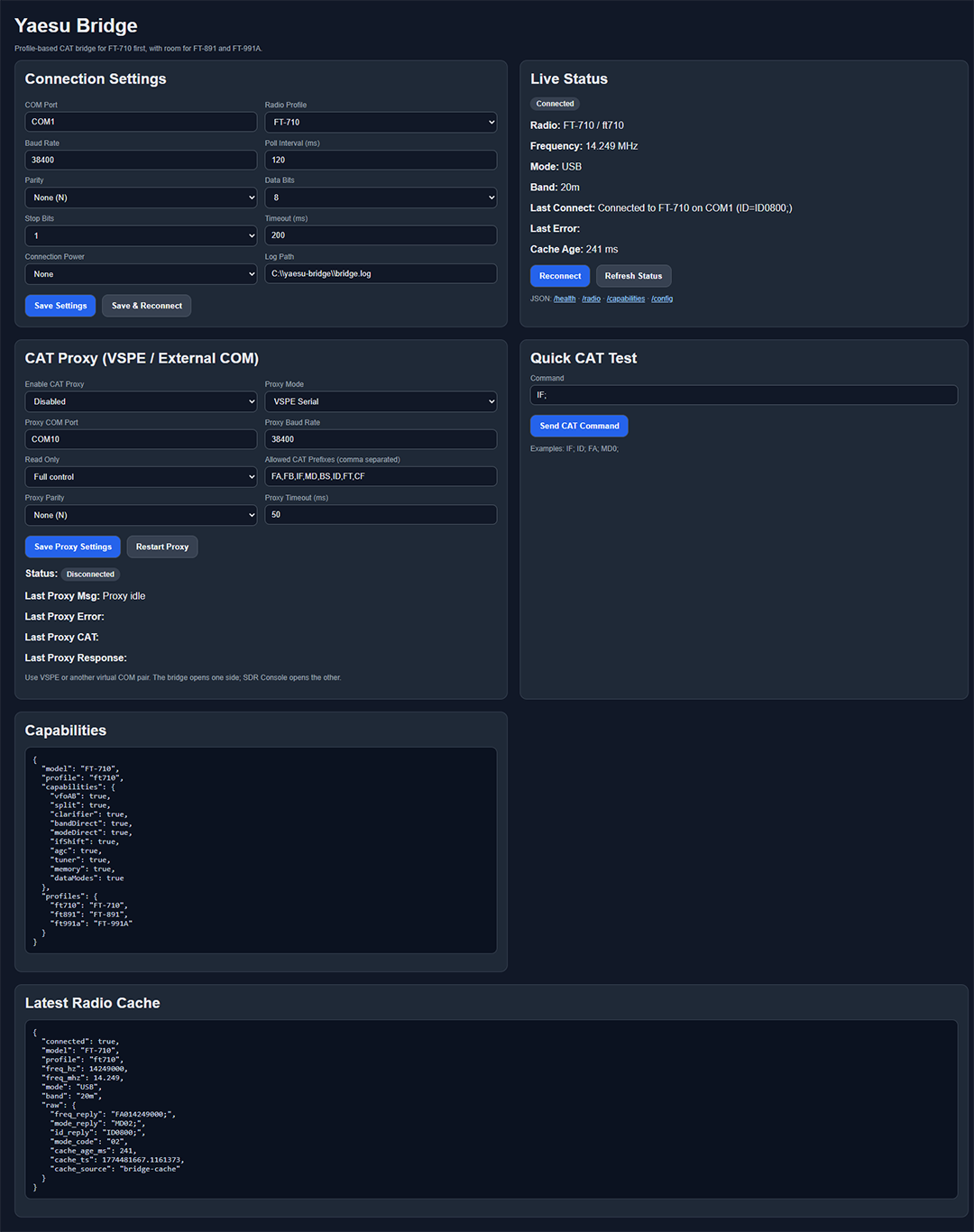
Connection Settings:
COM Port
Radio Profile
Baud Rate
Poll Interval (ms)
Parity
Data Bits
Stop Bits
Timeout (ms)
Connection Power
Log Path
CAT Proxy (optional):
Enable CAT Proxy
Proxy Mode
Proxy COM Port
Proxy Baud Rate
Read Only / Full Control
Allowed CAT Prefixes
Proxy Parity
Proxy Timeout
Use the correct values for your Yaesu radio and station setup.
If the COM port or radio settings are wrong,
the bridge may start but fail to communicate with the radio.
If needed, you can also configure the optional
CAT Proxy (VSPE / External COM) section for advanced serial workflows.
Run the Yaesu Bridge
Once configured, start the Yaesu Bridge so it begins listening locally for Map-panion.
You can run the Yaesu Bridge in either of two ways:
Manual start
Start the bridge script directly
Open the settings page in your browser
Confirm the bridge connects to the radio
Recommended auto-start
Run the installer script
Let it create the hidden launcher and Scheduled Task
The bridge will start automatically at Windows logon
The bridge is intended to run quietly in the background as a local service.
Open the Yaesu Bridge settings page
After starting the Yaesu Bridge, open the settings page in your browser.
Typical local URL:
http://127.0.0.1:8790
From there you can:
Save connection settings
Reconnect the bridge
Test CAT commands
Review live radio status
Configure CAT proxy options
Verify the bridge is running
After starting the Yaesu Bridge, confirm that it is running correctly
before trying to use it from Map-panion.
To verify the Yaesu Bridge is running, test:
Settings page: http://127.0.0.1:8790
Health check: http://127.0.0.1:8790/health
If the bridge is working, the browser page should load, and the health endpoint should respond.
If the health check does not respond
Confirm the bridge is running
Confirm the expected local port
Confirm Windows firewall is not interfering
Confirm the bridge configuration is valid
Enter the bridge settings in Map-panion
Once the Yaesu Bridge is running, open Map-panion and enter
the matching bridge settings where applicable.
Use the settings that match your local Yaesu Bridge configuration.
Typical items to confirm
Bridge host
Bridge port
Any related integration or radio-control settings
If Map-panion and the Yaesu Bridge are running on the same computer,
the host will often be: 127.0.0.1
If the bridge is running on another computer on your network,
use that computer’s LAN IP instead.
Restart and Test
After entering the settings, restart Map-panion if the new
values do not take effect immediately.
Start the Yaesu Bridge
Confirm the bridge health check is responding
Open Map-panion
Confirm Map-panion can see the bridge
Confirm radio-related information updates correctly
Some settings are loaded at startup, so a restart may be
required before the bridge is fully recognized.
Auto-start at login
The recommended Yaesu Bridge setup uses:
a PowerShell installer
a hidden VBS launcher
a Scheduled Task
This allows the bridge to start automatically at Windows logon without leaving a console window open.
Typical workflow
Place the Yaesu Bridge in its install folder
Run the installer script as Administrator
Let the installer create the hidden launcher
Let the installer create the Scheduled Task
Sign out/in or reboot to confirm auto-start
This makes the bridge easier to use because it is already
running when Map-panion starts.
Portable Version Note
If you are using the portable version of Map-panion, the config.json file
needs to live beside the portable .exe.
After you save the integration settings, Map-panion writes them
to config.json. If that file is not already there, it will be created after saving.
After saving, restart Map-panion so the new settings are loaded.
For portable installs, keep the app in its own folder so the .exe
and config.json stay together.
Troubleshooting
Bridge is not running
Confirm the bridge files are in the expected folder
Confirm the bridge script or launcher is starting correctly
Confirm Python or the required runtime is available if needed
Bridge page loads but radio is not connected
Confirm the COM port is correct
Confirm the radio profile is correct
Confirm baud rate matches the radio
Check the Last Error and Last Connect fields
Health page works but Map-panion does not connect
Confirm Map-panion is using the correct host and port
Confirm the Yaesu Bridge is already running
Restart Map-panion after saving integration settings
Auto-start does not work
Confirm the Scheduled Task exists
Confirm the VBS launcher path is correct
Confirm Python is installed and available
Sign out/in or reboot and test again
CAT Proxy issues
Confirm the proxy COM port is correct
Confirm VSPE or the virtual COM software is configured correctly
Confirm allowed CAT prefixes if filtering is enabled
Health check does not respond
Confirm the bridge is actually running
Confirm the configured local port
Confirm firewall settings are not blocking local access
No radio data appears
Confirm the COM port is correct
Confirm the baud rate matches your radio setup
Confirm no other program is locking the serial connection
Confirm the radio profile or bridge config matches the actual radio
Settings do not stick after restart
Confirm Map-panion is saving its config correctly
Portable users should keep the app in its own folder
Confirm that config.json is beside the portable .exe
Quick Summary
The Yaesu Bridge is a local companion service that helps
Map-panion work with supported Yaesu radio control workflows.
Place the bridge in its install folder
Start the bridge or install it for auto-start
Open the settings page at http://127.0.0.1:8790
Configure COM port, radio profile, and baud rate
Save the settings
Confirm that the bridge health page responds
Enter the matching settings in Map-panion
Restart Map-panion if needed
If you use the auto-start installer, the bridge can start automatically at Windows logon.